

Amazon Seller Central Setup: Connect Walmart, eBay & Shopify
You have decided to use Amazon Seller Central's unified dashboard to manage your Walmart, eBay, Shopify, and TikTok sales. This Amazon Seller Central setup guide walks you through connecting each platform, inventory sync strategy, and how to integrate it with your automation stack without breaking your existing workflows.
Amazon Seller Central Setup: Pre-Migration Checklist
Do not connect your accounts cold. Amazon Seller Central setup with multiple platforms requires planning. This feature is part of the broader consolidation of ecommerce infrastructure. Spend 30 minutes on these tasks first:
- List every product SKU you sell across platforms. Create a spreadsheet with: Amazon ASIN, product title, current price on each platform, quantity on hand. This is your truth table for the next 48 hours.
- Identify gaps and inconsistencies. Which products are on Amazon but not Walmart? On Shopify but not eBay? Mark these. Seller Central will ask you to map them.
- Audit your inventory accuracy. If your Shopify inventory is off by 30 units because of a manual entry error six weeks ago, now is the moment to fix it. Syncing garbage data across five platforms makes the problem worse.
- Back up your current Seller Central settings. Download your inventory, your listings, your feeds. Keep a copy offline. Multi-channel setup is not destructive, but backups cost nothing and save panic.
- Decide on a test product first. Pick one fast-moving SKU, connect its channels, and run the sync for 48 hours before you connect everything else. See what breaks on one product before it breaks on a thousand.
Step 1: Connect Your Platform Accounts to Seller Central
1 In Seller Central, navigate to Multi-Channel Manager (location varies; check your Seller Central menu or search "multi-channel").
2 Click Connect Account and select your first platform (start with Walmart).
3 You will be prompted to authorize Seller Central to access your Walmart Seller Centre account. This is an OAuth flow: you log into Walmart, authorize the connection, and get bounced back to Seller Central. Do not close the window during this step.
4 Amazon will verify the connection and sync your Walmart seller profile and products. This takes 5–15 minutes depending on catalog size. Watch the progress indicator.
5 Repeat for eBay, Shopify, and TikTok Shop. You can connect all of them in one session, but do it sequentially (not all at once) to avoid auth timeouts.
Important: The account you connect must be the seller account owner or have seller-level permissions on each platform. If you use a sub-account or contractor-managed profile, ask that person to authorize the connection, or add Seller Central's API key to their permissions first.
Step 2: Map Your Listings Across Platforms
After you connect each platform, Seller Central attempts to match your Amazon listings to products on the other channels. Some matches are automatic (same exact product title + UPC). Most need manual review.
6 Go to Manage Listings in Multi-Channel Manager.
7 You see a three-column view: Amazon listings on the left, auto-matched products in the middle, unmatched on the right.
8 For each Amazon listing, either:
- Accept the auto-match if Seller Central found the right product on Walmart/eBay/Shopify.
- Search and match manually if the auto-match is wrong (it looked for "Widget A" and found "Widget A Pro" instead).
- Mark as Amazon-only if you do not sell this product on other platforms. These will not sync.
9 For listings with no match at all on a given platform, you have two options:
- Create a new product listing on that platform using your Amazon data as a template. Seller Central can auto-draft the listing.
- Skip this platform for this product. You will not sync it.
Real-world note: When I first synced my own product catalog across Amazon and Walmart, I did not realize that Walmart required UPC codes for category approval in their marketplace, but my Amazon listings used internal SKUs. Four products would not match. I had to bulk-upload UPCs to Walmart first, then re-run the match. Do your homework on platform-specific requirements before you start the mapping.
Step 3: Configure Inventory Sync Strategy
This is where the real value lives, and also where most sellers get tripped up.
10 In Multi-Channel Manager, go to Inventory Settings.
11 Choose your sync strategy. You have two models:
- Unified inventory pool: All your on-hand quantity is shared. Sell one unit on Shopify, and your Amazon stock drops by one. This is the default and it is what you want if you ship everything from the same warehouse.
- Platform-specific inventory: Each platform keeps its own stock separate. Sell one unit on Shopify, Amazon's stock does not change. Use this only if you have dedicated inventory for each channel (unlikely for most sellers).
12 For each product, set the sync behavior: real-time sync, daily sync, or manual sync only.
Real-time is the default and it is good. If your inventory on Amazon goes from 10 to 5, all your other channels reflect that within 60 seconds. Daily sync introduces a lag (useful if you have processing delays), and manual is only for products you want to control separately (like limited editions or pre-orders).
13 Set inventory buffers. This is crucial: you can tell Seller Central to hold back X units from other channels for Amazon-only sales. Example: you have 100 units on hand, but you reserve 30 for Amazon. Only 70 are available for Walmart/eBay/Shopify. When those 70 sell, Walmart/eBay/Shopify go to zero, but Amazon still has access to your reserved stock.
This prevents over-selling when Amazon volume is unpredictable.
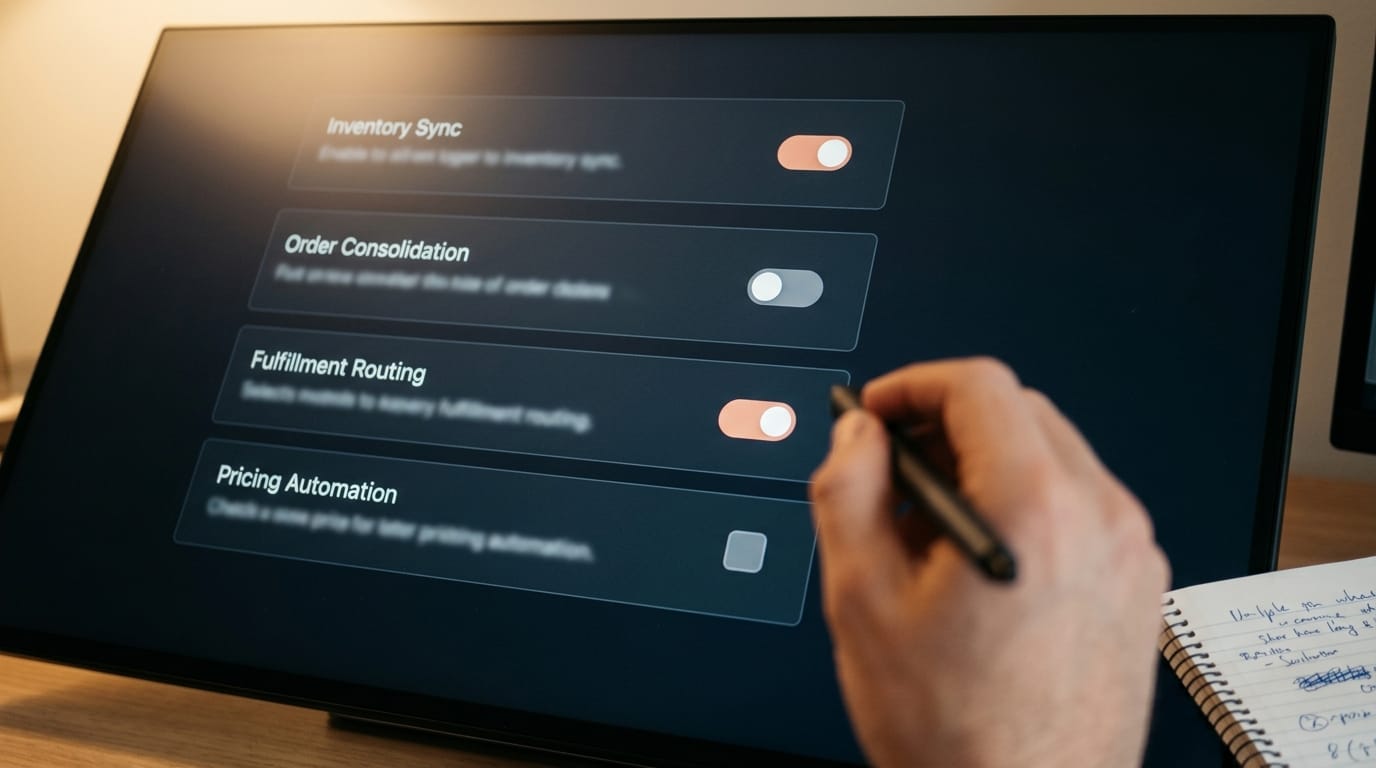
Step 4: Set Up Order Routing and Fulfillment
14 Go to Fulfillment Settings.
15 For each platform, choose:
- Self-fulfilled: You handle packing, labeling, and shipping. Seller Central generates a unified picking list and shipping labels for all channels.
- FBA-fulfilled: Amazon fulfills the order. This is new for cross-channel orders, so test it first. Amazon will store inventory from Walmart/eBay/Shopify sales in your FBA warehouse and handle fulfillment.
- Mixed (by product): Some products FBA, others self-fulfilled. This is the most complex setup but it is workable.
FBA cross-channel caveat: When an eBay order gets fulfilled through FBA, the return policy, SLA, and handling follow eBay's marketplace rules, not Amazon's. Test this on 10–20 orders before you trust it at scale. One bad return experience on a non-Amazon channel can cascade.
16 Configure picking and packing rules. Seller Central can consolidate orders from multiple channels into a single shipment if they go to the same address. This cuts your shipping costs. Enable it.
Step 5: Integrate With Your Automation Stack
If you use n8n for inventory adjustments, low-stock alerts, or order routing, you need to update your workflows to account for multi-channel sync.
Before multi-channel: Your n8n workflow watches Amazon inventory and triggers a low-stock alert when quantity drops below 20.
After multi-channel: That same inventory drop now reflects sales from Amazon + Walmart + eBay + Shopify. Your low-stock alert still fires, but it is now triggered by aggregate demand across all channels, not just Amazon. This is what you want.
17 Update your n8n workflows to pull inventory from the Seller Central API (if available) instead of just the Amazon API. This gives you a unified inventory number rather than siloed channel views.
18 If you have custom order-routing logic (e.g., "high-AOV orders ship from warehouse A, low-AOV from warehouse B"), test this across channels. Walmart orders may have different AOV than Amazon, which could change your routing logic.
19 Set up a daily reconciliation check. Before you go fully live, run a n8n workflow that pulls order totals from Seller Central and compares them against your accounting system. Sync is real-time, but accounting reconciliation is not; flag the gaps.
Step 6: Run Your 48-Hour Test
You have one product connected across all five channels. Real inventory is syncing. Orders are coming in (hopefully).
Watch these metrics for 48 hours:
- Inventory accuracy: Sell one unit on Shopify at hour 12. Does it show up as sold-out on Walmart within 60 seconds? Check manually in both dashboards.
- Order consolidation: Get a multi-channel order (or manually create one). Does Seller Central show it in the unified order view? Can you process it as a single shipment?
- Fulfillment routing: Ship the order. Does the status update across all platforms? If it's FBA, does the FBA tracking sync back to the marketplace?
- No data loss: Spot-check your accounting. Order totals, tax calculations, and margin math should match manual reconciliation.
If all four of those pass, you are safe to enable multi-channel for your full catalog. If one of them fails, isolate the problem before you expand.
Step 7: Go Live, Full Catalog
20 Enable multi-channel sync for all matched product listings. Do this in batches (e.g., first 500 SKUs, wait 24 hours, next 500). Watch your systems for memory leaks, API rate-limit errors, or unexpected behavior. Most platforms can handle it, but not all infrastructure is equal.
21 Announce the change to your team. If you have customer service, warehouse staff, or accountants touching orders, they need to know that order sources are now consolidated. Expectations change.
22 Run daily reconciliation for the first week. After a week with no discrepancies, move to weekly. After a month, you can move to as-needed.
Common Gotchas and How to Avoid Them
Over-selling during the sync lag: Inventory sync is near-instant, but not atomic. There is a millisecond window where a customer on Walmart can buy your last unit while a customer on Amazon is also clicking buy. Usually this resolves naturally (one order processes first), but with high-velocity SKUs you can end up with over-committed inventory. Inventory buffers mitigate this.
Currency conversion on international marketplaces: If you sell on Walmart Canada or a UK eBay site, prices and inventory sync across currency boundaries. Test this. Some sellers get surprised when £9.99 becomes CAD $15 and margin math breaks.
Marketplace-specific policies breaking your multi-channel rules: Walmart requires UPCs. eBay requires different return policies by category. TikTok Shop has its own restrictions. Inventory sync works, but policy violations do not. Make sure your product data meets the requirements of all platforms you are syncing to.
FBA for other platforms is new: It works, but test it. Return handling, damaged goods reporting, and reimbursement logic for FBA-fulfilled orders from non-Amazon channels are still stabilizing. Do not assume it is as battle-tested as Amazon-native FBA.
Need Help With Your Multi-Channel Setup?
The implementation is straightforward, but the strategy questions are real: inventory buffers, FBA routing, automation integration. Let's audit your setup and make sure you are not leaving margin on the table.
Start a Setup Consultation